It looks like you're trying to
Build an Extension for Command Palette

It took more than a decade, but I finally got tired of running the same five ADB commands. You know the drill: open the terminal, hit the “up” arrow key seventeen times, get frustrated, hit it three more times, “is it this one?”. Ah fuck. Anyways.
I’ve been a heavy user of Command Palette for the past few months, so I thought — hell, I can spare an hour or two to extend it and never touch the terminal again.
TL;DR#
Introducing ADB extension for Command Palette. Type adb, pick an app/pick an action and voila!
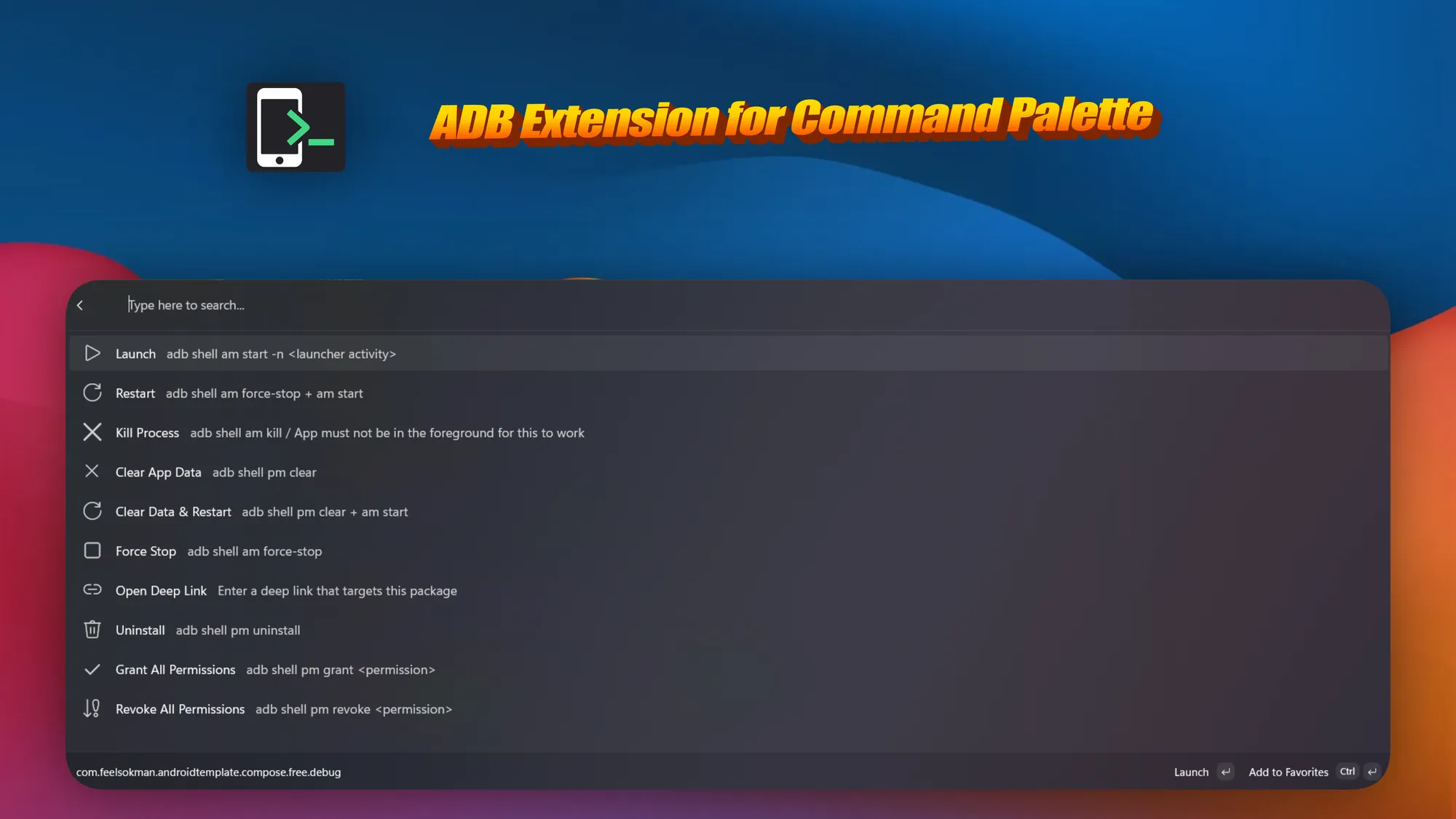
I also published it on the Microsoft Store + Winget. I wasted so many hours on this, might as well.

winget install --id CostaFotiadis.ADBExtensionforCommandPalette
What is Command Palette?#
If you’re on macOS you have Spotlight, Raycast or Alfred — hit a hotkey, type anything, things happen. On Windows we’ve actually had options for a while too: Flow Launcher, Raycast and a bunch of others I’m missing.
And of course PowerToys Run, which is what I had been using for the past few years.
Command Palette is Microsoft’s newer, nicer take — a searchable palette, and — crucially for this post — an extension model. It allows for anyone to add more functionality on top of it. The palette discovers them, indexes them, and runs them.
The extension model#
An extension is a WinUI/C# class library that exposes a CommandProvider. The provider returns top-level items. Items can either run an InvokableCommand or navigate into a Page. Pages are lists. Lists contain items. Items contain… you see where this is going.
internal sealed partial class ClearAppDataCommand : InvokableCommand
{
    private readonly string _packageName;

    public ClearAppDataCommand(string packageName)
    {
        _packageName = packageName;
        Name = "Clear App Data";
    }

    public override ICommandResult Invoke()
    {
        AdbHelper.RunAdb($"shell pm clear {_packageName}", out _, out string error);
        return string.IsNullOrEmpty(error)
            ? CommandResult.ShowToast($"Cleared data for {_packageName}")
            : ErrorToast($"Failed to clear data: {error}");
    }
}
ClearAppDataCommand.cs
That’s the whole pattern basically, 18 times, with different shell invocations. 🧌
Shelling out to adb.exe#
Since I am clueless, I didn’t even bother using any proper ADB client libraries for .NET. Just spawn adb.exe as a subprocess and read stdout/stderr like it’s 1998.
process.Start();
string stdout = process.StandardOutput.ReadToEnd();
string stderr = process.StandardError.ReadToEnd();
process.WaitForExit(); // do NOT move this above the reads
process.cs
Why not a library? Any barely sane person using this most likely has adb set on their PATH already. It already handles transport and has the right protocol version for whatever Android build they’re on. Why complicate things?

What’s in the box#
The usual suspects: clear data, force stop, kill, uninstall, grant / revoke all runtime permissions, toggle animations etc. (full list on the README)
The one I use the most: launch deep link / arbitrary URI. Deeplinks are a huge PITA.
I have no idea what I am doing: ItemsChanged vs. the constructor#
Since I pretend to write Android to pay the bills, Windows framework lifecycles kind of escape me.
The bug: the page loads its package list asynchronously and raises ItemsChanged when the data arrives. Except the framework only subscribes to ItemsChanged after GetItems is called for the first time. The equivalent for android: it’s like an Activity that fires onDataReady() before onCreate() returns.
So if a background task finishes before that subscription is up, you fire into nothing - which of course results in nothing showing!
The fix: intercept the add accessor on INotifyItemsChanged.ItemsChanged and trigger the data fetch right there — the moment the framework subscribes, you start loading.
event TypedEventHandler<object, IItemsChangedEventArgs> INotifyItemsChanged.ItemsChanged
{
    add    { _itemsChanged += value; RefreshPackages(); }  // <-- the whole point
    remove => _itemsChanged -= value;
}
TypedEventHandler.cs
Two gotchas: use INotifyItemsChanged.ItemsChanged explicitly, not IListPage.ItemsChanged — same name, different interface, framework subscribes via the first one.
Now I was getting alarm bells in my head writing this whole thing and I am pretty sure this is horribly inefficient. But hey, it worked.

The EXE path is a dead end?#
The extension publishing docs show how to package an extension as an .exe with an Inno Setup installer.
If you follow along, build, install — the palette does not see your extension. No error. No logs. Nothing. 💢
First rabbit hole: the registry entries do nothing. The Inno Setup snippet in the docs is missing ValueType: string and ValueName: "". The key gets created, but the default value is empty. PowerToys finds the CLSID but has no idea where the exe lives.
The fix:
Root: HKCU; Subkey: "...\LocalServer32"; ValueType: string; ValueName: ""; \
    ValueData: "{app}\AdbExtension.exe -RegisterProcessAsComServer"
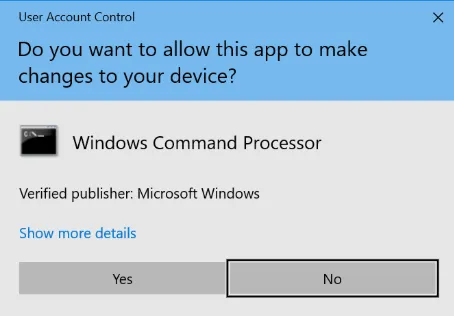
Second rabbit hole: a UAC prompt on install. {autopf} resolves to Program Files, which needs elevation. Nobody wants to click through UAC, it just sets off alarm bells.
The fix: Swap to {localappdata}\AdbExtension and set PrivilegesRequired=lowest.
typical UAC prompt
Third rabbit hole: none of it matters anyway.
Registry correct. No UAC prompt. Installs cleanly. Still does not show up in Command Palette.

Turns out PowerToys doesn’t discover extensions by scanning the registry or a folder like one might expect. It uses some weird Windows API that reads from installed MSIX packages — kind of like the Play Store vs sideloading.
So, if an app wasn’t installed through a “conventional” method, command palette doesn’t know it exists!
AppExtensionCatalog.Open("com.microsoft.commandpalette").FindAllAsync();I went looking for a fallback through the PowerToys repo, but no bueno. There is an AppPackagingFlavor enum with values like Unpackaged which looks promising for about thirty seconds. But it’s not yet integrated properly. Maybe later.
Fourth rabbit hole: I do not know how Visual Studio actually works? The reason I didn’t catch any of this during development is that Visual Studio makes sure to package and sign the in-development MSIX when you hit the Run button. Exactly the same pattern of what Android Studio does for the debug APKs.
It’s only when you try to ship an actual installer that you realise you should have read the actual docs. 🤣
Just ship an MSIX, right?#
To be honest I had no idea what an MSIX was before this. What do you know, it’s Windows’ equivalent of an APK — a signed bundle that Windows knows what to do with. So, you need a signed MSIX if you want to publish anywhere.
There’s a few ways to sign a bundle, and they all kinda naff:
- Buy a code signing cert — DigiCert and others. ~$100–300/year. (WHAT?!!)
- Azure Trusted Signing — Microsoft’s service, ~$10/month. I am registered in way too many things but I guess this works? (no wait, it’s only for US citizens)
- SignPath.io — free for open source. Gotta apply though. Good luck.
- Microsoft Store — the store will sign it. The catch is you now have to deal with Microsoft and the horrible review system.
I went with the Store in the end — it must be a fetish at this point, getting abused by both the Play Store and now the Microsoft Store.
The dev loop looks like this: submit the MSIX, wait for Microsoft to sign it. Then you upload the signed MSIX to the GitHub release and point the WinGet manifest at it. I mean this sucks but I do not like to spend 300 dollars for a signing cert so WCYD.

Anyways#
Horribly written C# code of the project can be found here. Hope you found this somewhat useful.
Later.