At the Mountains of Madness: Rewriting a 100-Line PowerShell Script as a KMP Desktop App

Not sure when it happened, but at some point I contracted this strange illness that compels someone to tinker with their OS on their spare time.
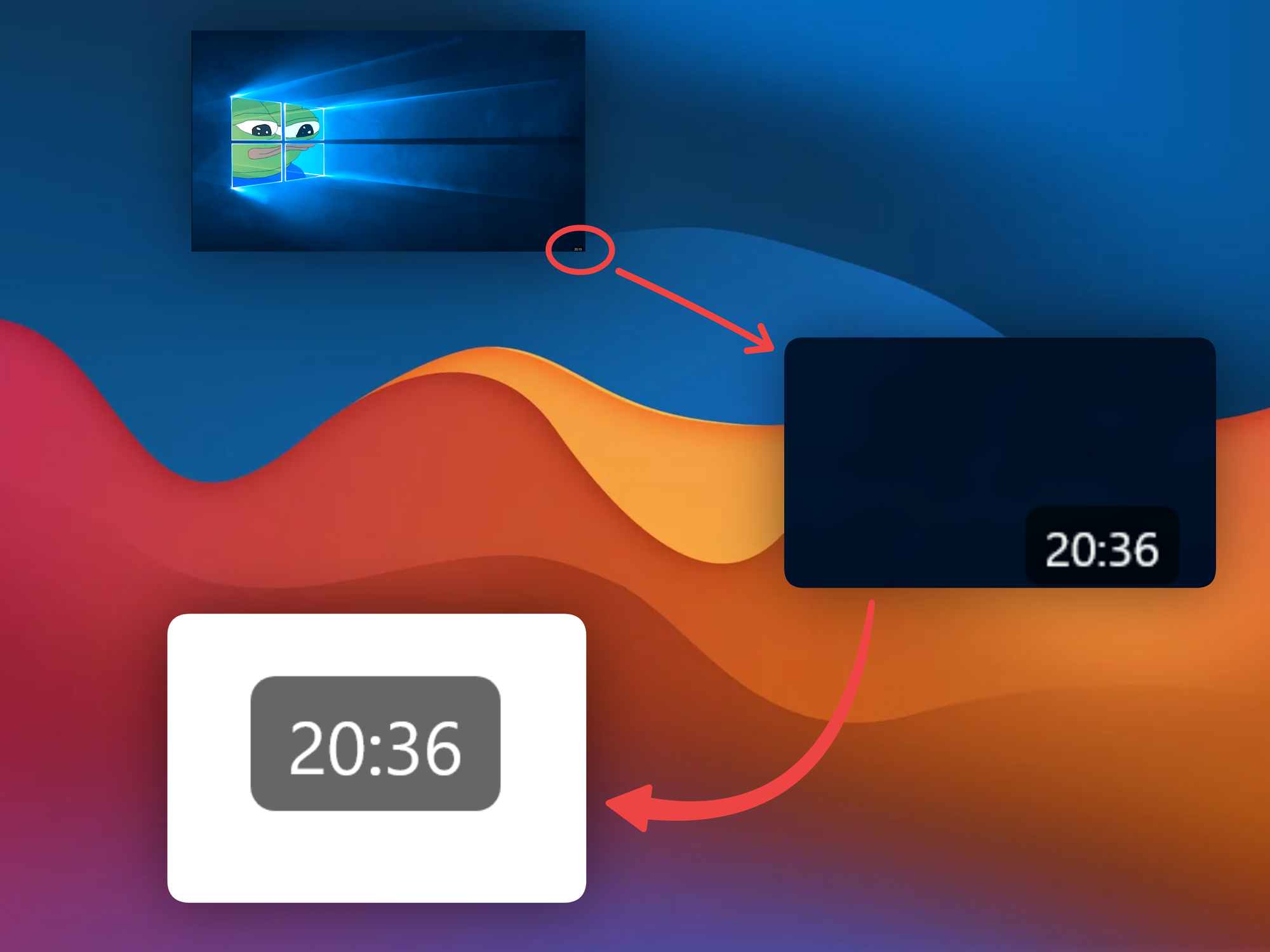
The latest symptom: a floating clock widget written in Powershell, that is visible at all times. (I hide my taskbar cause I pretend I'm a minimalist)
Since Powershell kinda sucks, I wondered if I could do the same with a proper Compose desktop app.
Let's lose a few braincells together, shall we?
TL;DR
Code is on GitHub if you want to skip the post entirely and miss out on all the memes.
Housekeeping
The original PowerShell implementation was about 100 lines. It consisted of a WPF window (.NET Framework 3.0 circa 2006 😎):
- With a transparent background
- Using
WS_EX_TOOLWINDOWto hide it from the taskbar - With a system tray icon
- And the position saved to a JSON file
// Talk to Windows UI layer
[DllImport("user32.dll")]

// Read the window style
GetWindowLong(windowHandle, EXTENDED_STYLE)

// Add the "hide from taskbar" flag and apply it
SetWindowLong(windowHandle, EXTENDED_STYLE, currentStyle | 0x80)
It really did work just fine as a classic caveman solution. 🧌
The Powershell script itself was abstracting out quite a lot of complexity. Technically we could shove all of this into a single .kt file and call it a day.
But where's the fun in that?
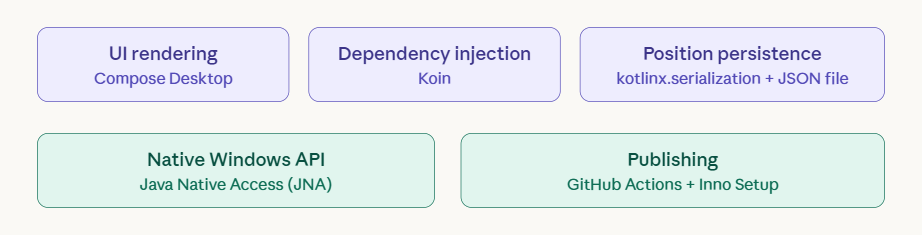
If we are to do this the right™ way, it's worth mapping out what we actually need to replicate.
Setting up the window
By default, the KMP project template gives us a basic window with title and controls.
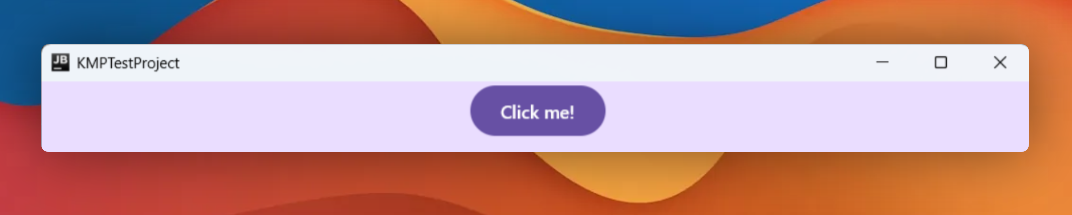
We need to kill the title bar, make the background transparent, keep it always-on-top, and make the whole surface draggable since there's no title bar to grab.
The widget
The original had a semi-transparent rounded black pill with white text. We do not care about system theme and other niceties, let's just hardcode values here.
Since we got Koin for dependency injection, it would be convenient to abstract away the timer in the ClockViewModel.
As is usually the case, these fun weekend side projects that are supposed to be super easy always end up exposing a weakness or a misconception I have. Can you spot it?
Why not a plain 60-second delay?
If the app starts at 12:34:45, a 60-second delay fires at 12:35:45. Sync to the boundary once, and every tick lands exactly on the minute flip after that.
The fix: calculate how many milliseconds remain until the next minute, delay by that, then settle into the 60-second rhythm.
Going down the Windows Native rabbit hole
By default, Compose Desktop windows show up in the taskbar.
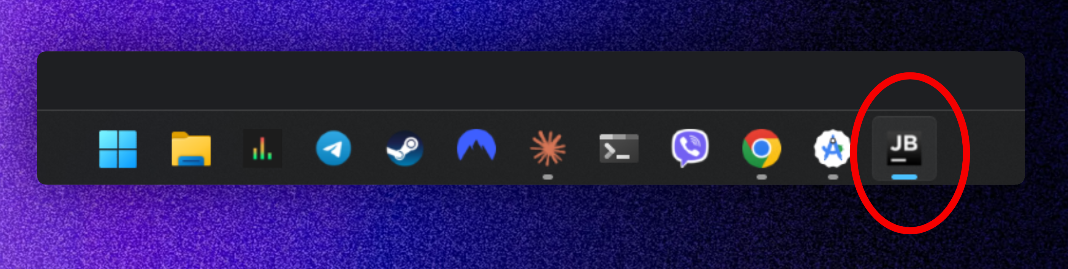
Wait a minute! We want it to behave like a system tray utility, not a regular app window. 💢
Here's where it gets interesting though. The PowerShell script hid the window from the taskbar using SetWindowLong with WS_EX_TOOLWINDOW (0x80). A straight up native Windows API call.
In Kotlin, we can do this via Java Native Access – a library that lets JVM languages call native OS functions without writing any C code.
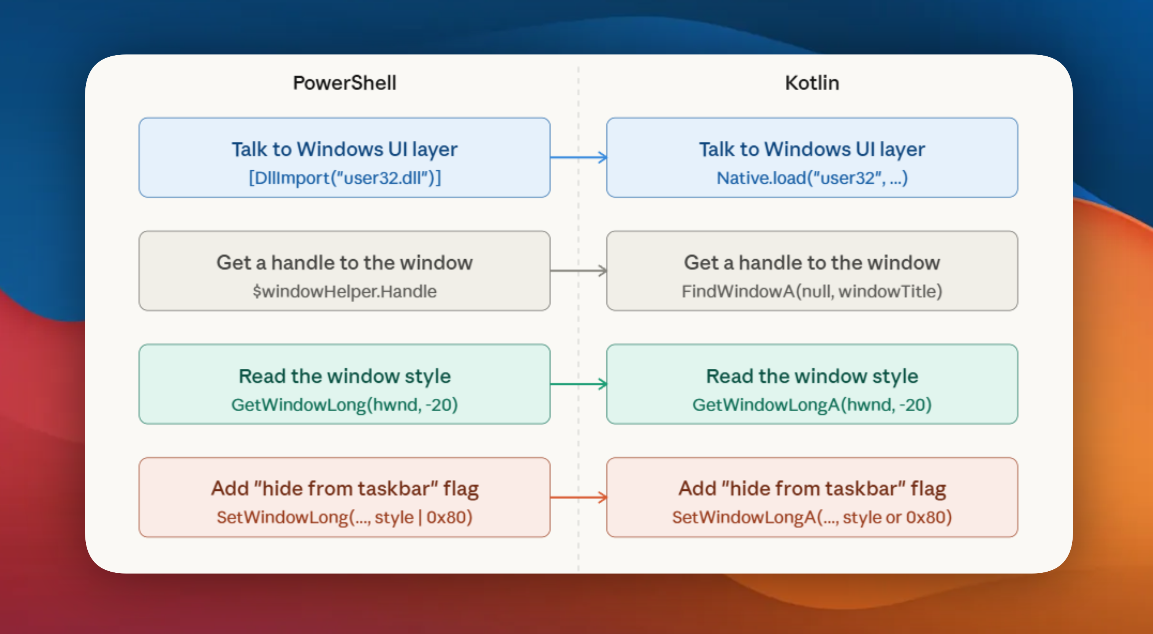
Now that we know the mapping, writing the code is straightforward enough.
This is where Koin earns its place. It seemed overkill for a clock widget — and honestly it still is — but swapping implementations per platform is now trivial.
Adding macOS or Linux support is just a matter of writing the platform-specific implementation and updating the binding.
Configuring the system tray
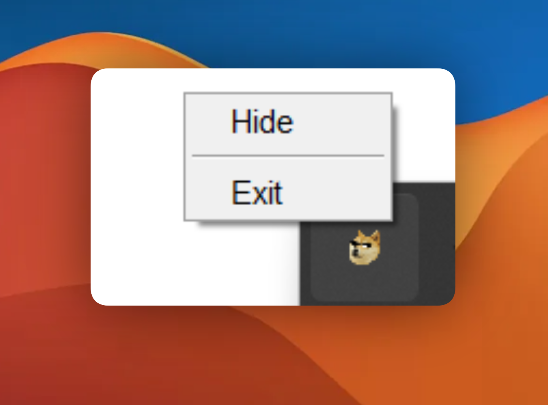
With the window hidden from the taskbar, we now need a way to actually control it. That's where androidx.compose.ui.window.Tray comes in.
Show, hide, exit. That's all it needs.
What about position persistence?
The window position gets saved to a plain JSON file — no permissions required.
On the next launch it reads it back and restores exactly where it was left. kotlinx.serialization keeps everything strongly typed, which is always nice.
Proguard madness
After building the release variant of the app – via ./gradlew :composeApp:packageReleaseMsi – with obfuscation enabled, I ran into all sorts of crashes.
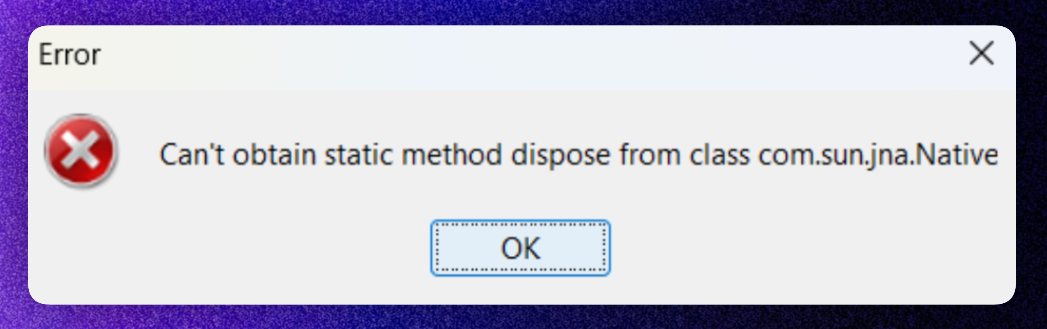
Apparently, Java Native Access works via reflection. ProGuard was a bit too agressive stripping/renaming JNA stuff that is needed at runtime for native platform access.
The "fix" is to add the rules to proguard-rules.pro:
-dontwarn java.awt.*
-keep class com.sun.jna.* { *; }
-keep class * extends com.sun.jna.* { *; }
-keepclassmembers class * extends com.sun.jna.* { public *; }
And then wire it up in the gradle file:
buildTypes.release.proguard {
    configurationFiles.from("proguard-rules.pro")
}
To be honest, ProGuard here seems way more trouble than it's worth. I cannot imagine myself trusting it fully on a desktop app.
Publishing this masterpiece of software engineering
Three Gradle tasks, one for each platform:
# Windows
./gradlew :composeApp:createReleaseDistributable

# Linux
./gradlew :composeApp:packageReleaseDeb

# macOS
./gradlew :composeApp:packageReleaseDmg
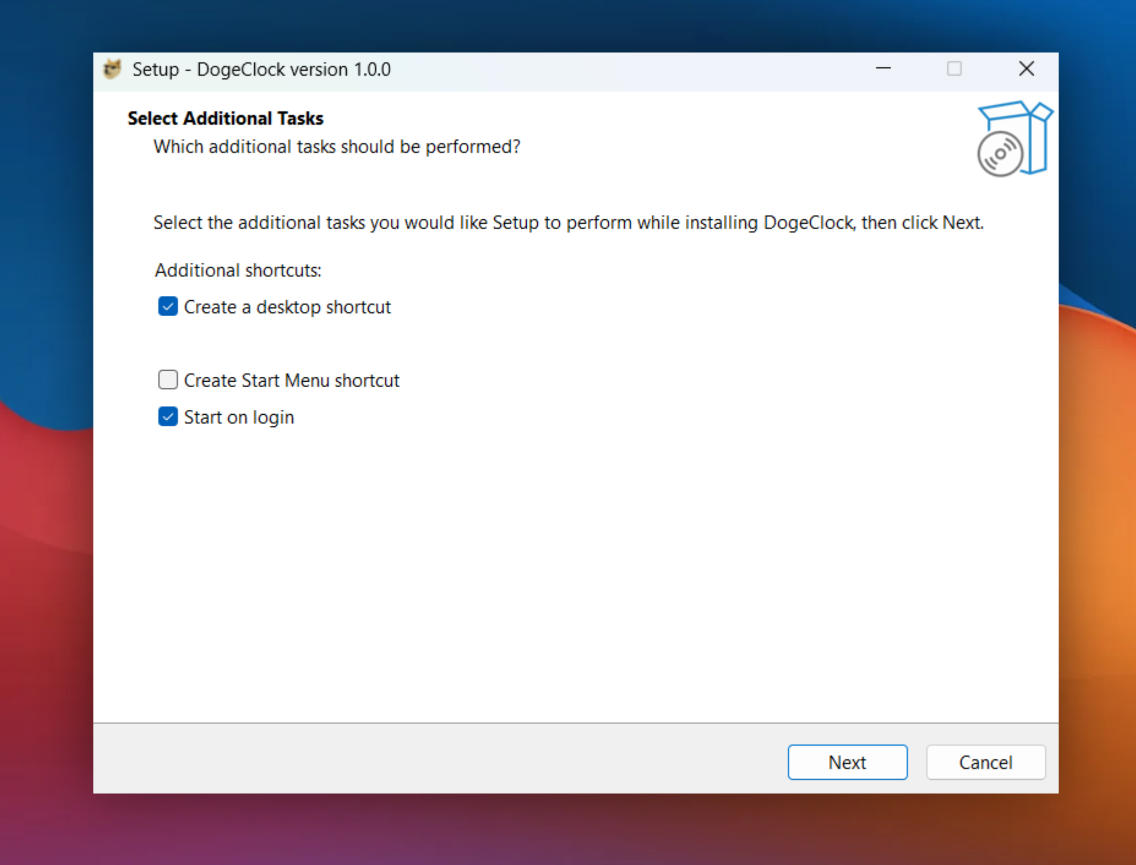
The Windows distributable gets wrapped into an installer via Inno Setup — a scriptable installer builder that's been around since forever.
No admin rights, opt-in shortcuts, start on login — and it's already on windows-latest runners so nothing to install.
Anyways
I think I've contracted a new addiction writing KMP desktop apps now.
Hope you found this somewhat useful.
Later